 GrabNConvert

Everything in the box.
Twenty tools in one app, all on your own computer. Pick a topic below.
Media
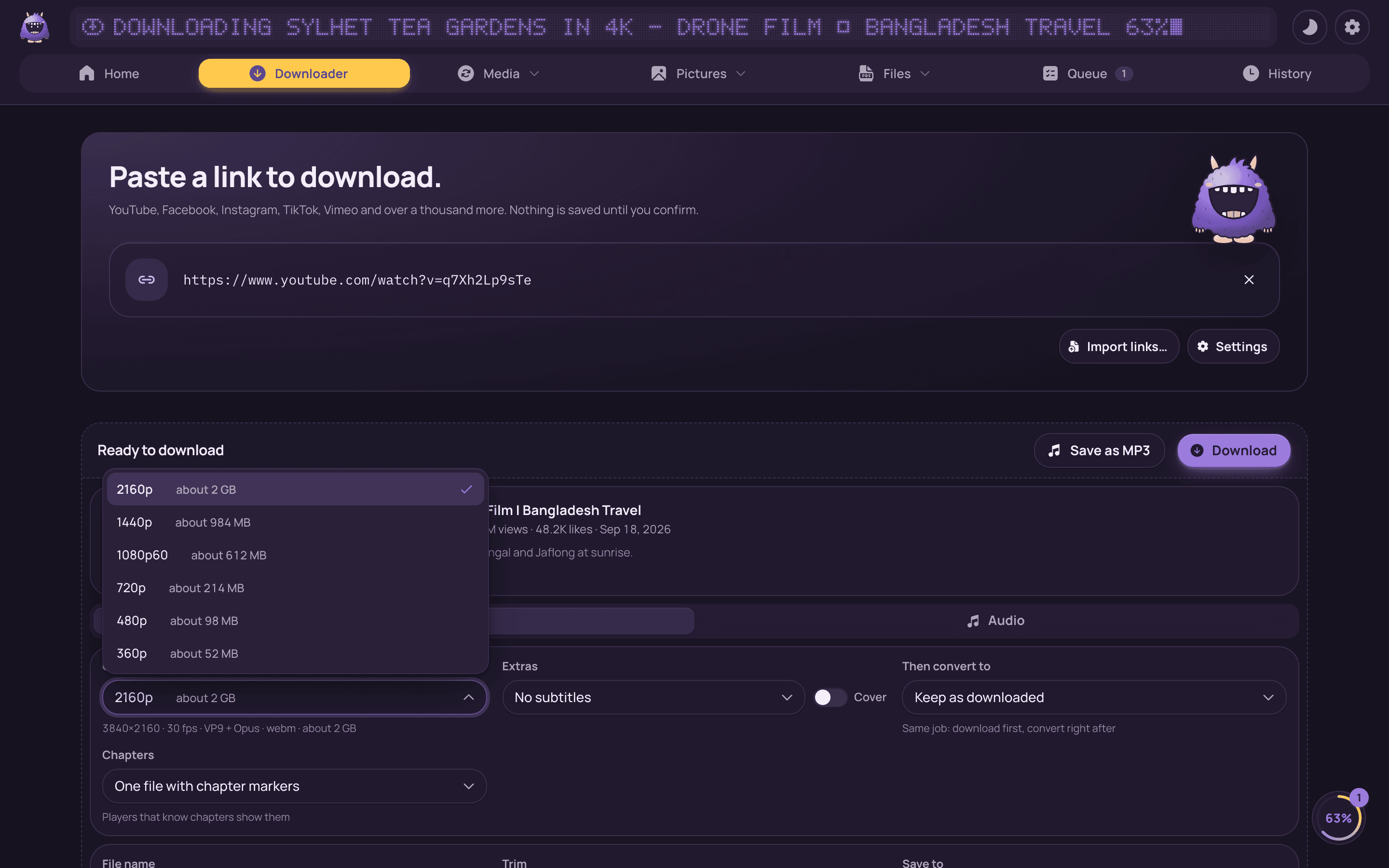
Paste a link. The rest is a choice of quality.
Powered by the same open engine behind most downloaders, kept up to date from inside the app.
- Paste and goCopy a link anywhere, press ⌘V in the app, and it is checked at once. The qualities listed are the ones the site really offers, with sizes.
- Over a thousand sitesPublic links from over a thousand video and audio sites; the list is on the Help page. Only save what you own or have permission to use.
- Playlists as rowsEvery item in a playlist is its own row: tick what you want, watch each one's progress, retry one. They land in a folder named after the playlist.
- Download, then convert, as one job"Give me this as 720p MP4" or "as MP3" is a single job with one progress bar.
10 more
- Cloud drivesA share link from Dropbox, Google Drive, OneDrive, MediaFire or pCloud, or a plain link to a file, saves the file itself, any kind, under its own name. Dropbox Transfer, WeTransfer and MEGA open in a download window inside the app: press Download there and the files land in your folder.
- Save as MP3One click beside the Download button saves just the audio, for single videos and ticked playlist items alike.
- Subtitles and cover artEmbed subtitles or save an .srt beside the file, in the language you choose. Embed the thumbnail as cover art.
- Trim before downloadGive a start and an end (1:30, 90, 2m) and only that part is kept.
- Batch paste and link listsPaste several links at once and each becomes a job. Import a plain .txt of links, or export the queue's links the same way.
- Browser buttonA bookmarklet sends the page you are on straight to the app. Copy a link and the status bar says so.
- Copy a link, the mascot comes outCopy a video link in any app and the download options appear at the top of the screen: out of the notch on a Mac, in a small popup on Windows. Links with nothing to download stay quiet. "Notice copied links" in Settings turns it off.
- Repeat-download noticeChecked a link you already downloaded? It says so and opens the file you have.
- Resume after cancelPartial files are kept when you cancel or lose the connection. Retry continues where it stopped on sites that allow it.
- Plain-language errorsPrivate, login-only, DRM-protected, geo-blocked or unavailable: the message says which, in words.
Any format in, the format you need out.
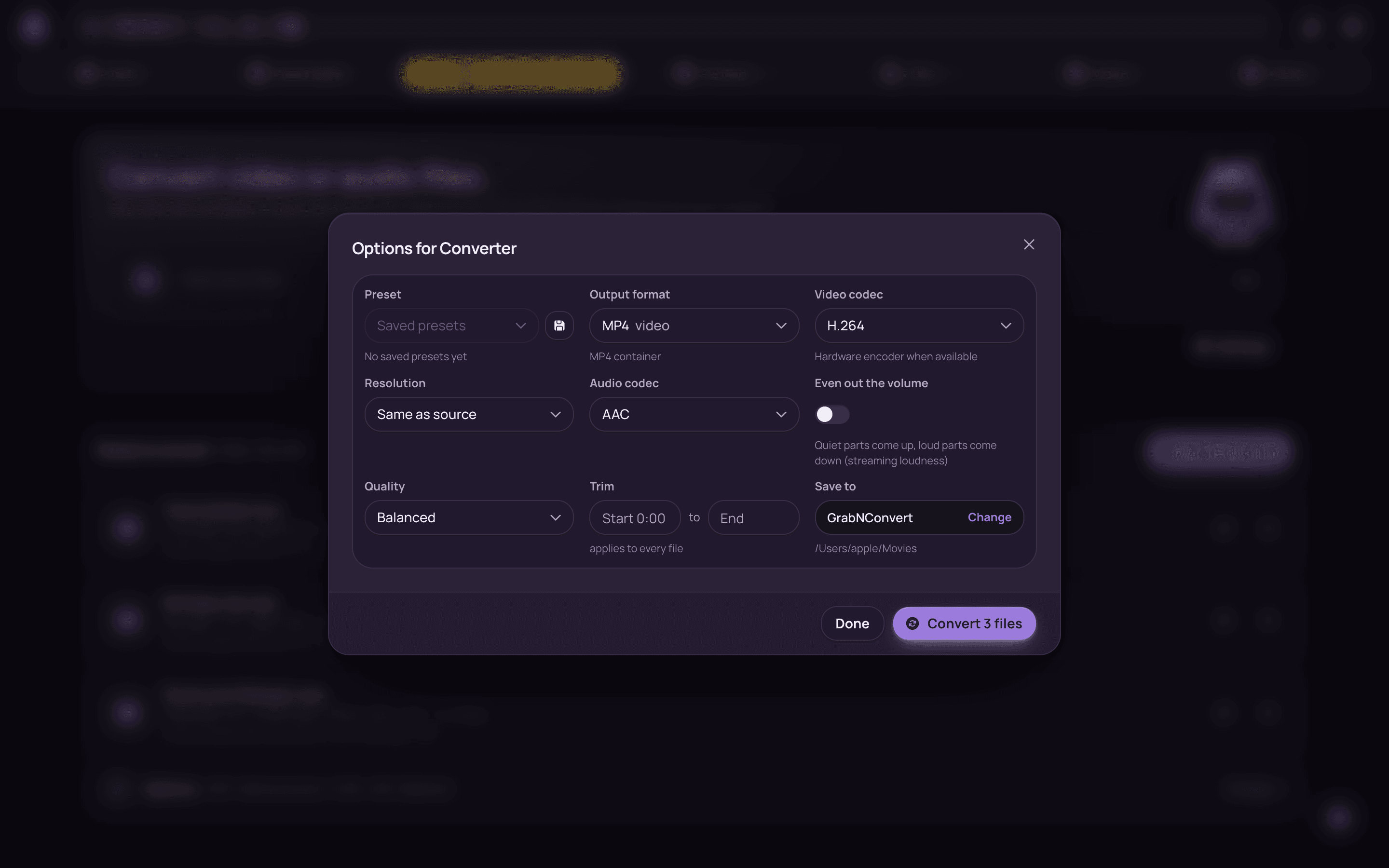
FFmpeg does the work. Originals are never modified; every conversion writes a new file.
- Video and audio formatsMP4, MOV, MKV, WebM with H.264, HEVC, VP9 or AV1. Audio only as MP3, M4A, WAV or FLAC.
- Trim with a filmstripStills across the file show where you are. Click a frame for the start, shift-click for the end, or type the times.
- Chapters kept, or splitChapter markers survive the conversion. Or split a long video into one file per chapter, together in a folder.
- Audio track and loudnessChoose which audio track to keep and even out the volume so quiet and loud files match.
4 more
- GIF and PNGTurn a clip into a clean two-pass GIF at the frame rate you pick, or grab one frame as a PNG.
- Saved presetsSave the options you use most under a name. Pick it next time, or let the watch folder use it.
- Your folders, your namesChoose where files go once, or be asked every time. File names follow a pattern with {{title}}, {{quality}}, {{date}}.
- Many files at onceDrop a folder and it becomes its files; they share one setting and run through the queue as one batch. For a whole library, see Folder convert.
Fits WhatsApp. Says so before it starts.
Pick a share preset or type a target size; the bitrate is worked out for you.
- Share-size presetsWhatsApp, Discord, Email, Messenger: one click sets the size limit and the encoder lands near it.
- Target sizeType 25 MB and the app chooses the bitrate from the file's length. The panel title shows the estimate.
- Hardware encodingVideoToolbox on Apple Silicon and Intel Macs; NVENC, Quick Sync or AMF on Windows. Several times faster. The queue shows which encoder ran.
- Software when you want the smallest fileSwitch to software encoding in Settings for the best size at a given quality.
- Trim while compressingCut the start and end at the same time; the target size applies to what is left.
- Before and afterThe size you started with and the size you got, on every finished job.
Separate it, transcribe it, clean it.
Three tools for what is inside the sound, all on your computer.
- SeparatorVoice and background (karaoke), four stems (vocals, drums, bass, other) or six (adds guitar and piano). Demucs, a well-known open model, running on your computer. Apple Silicon Macs and Windows.
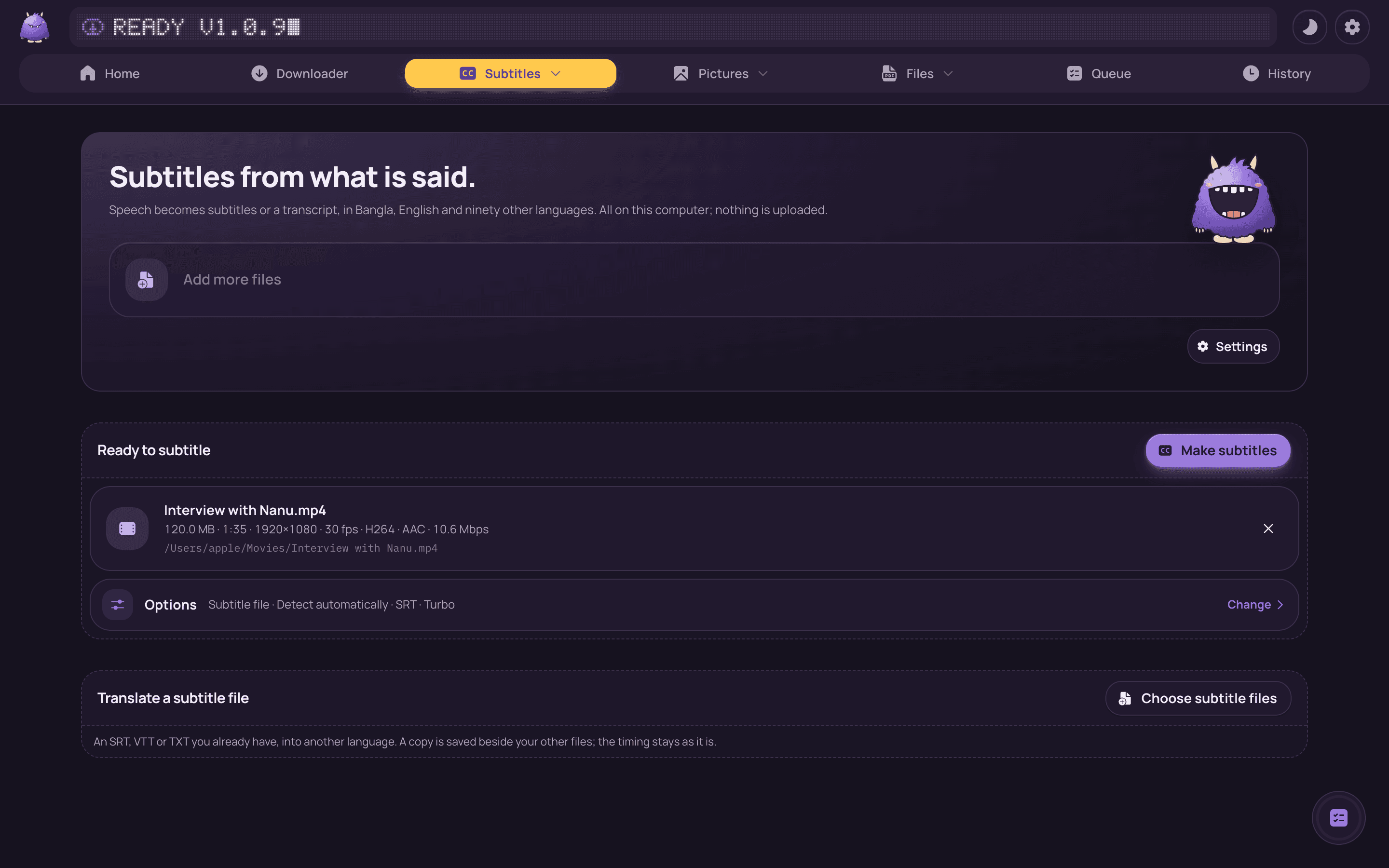
- SubtitlesListens to a video or a sound file and writes what is said: Bangla, English and ninety other languages.
- Subtitles in another languagePick Bangla, Hindi, English or 17 other languages under "Subtitles in" and the lines are translated on your computer before they are saved or burnt in. "Translate a subtitle file" does the same for an SRT, VTT or TXT you already have.
- Three ways outA subtitle file beside the video, a copy with a subtitle track you can switch on, or a copy with the words on the picture. Or a plain transcript.
3 more
- Audio toolsClean the noise, cut the silences, and even out the loudness to a standard level (podcast, YouTube or broadcast).
- Tags and cover artTitle, artist, album and a cover picture, written into MP3, M4A or FLAC. A video in gives a sound file out.
- Private, then offlineNothing is uploaded. The AI model downloads once, the first time you use the tool; after that it works without internet.
Reshape it, fix it, post it everywhere.
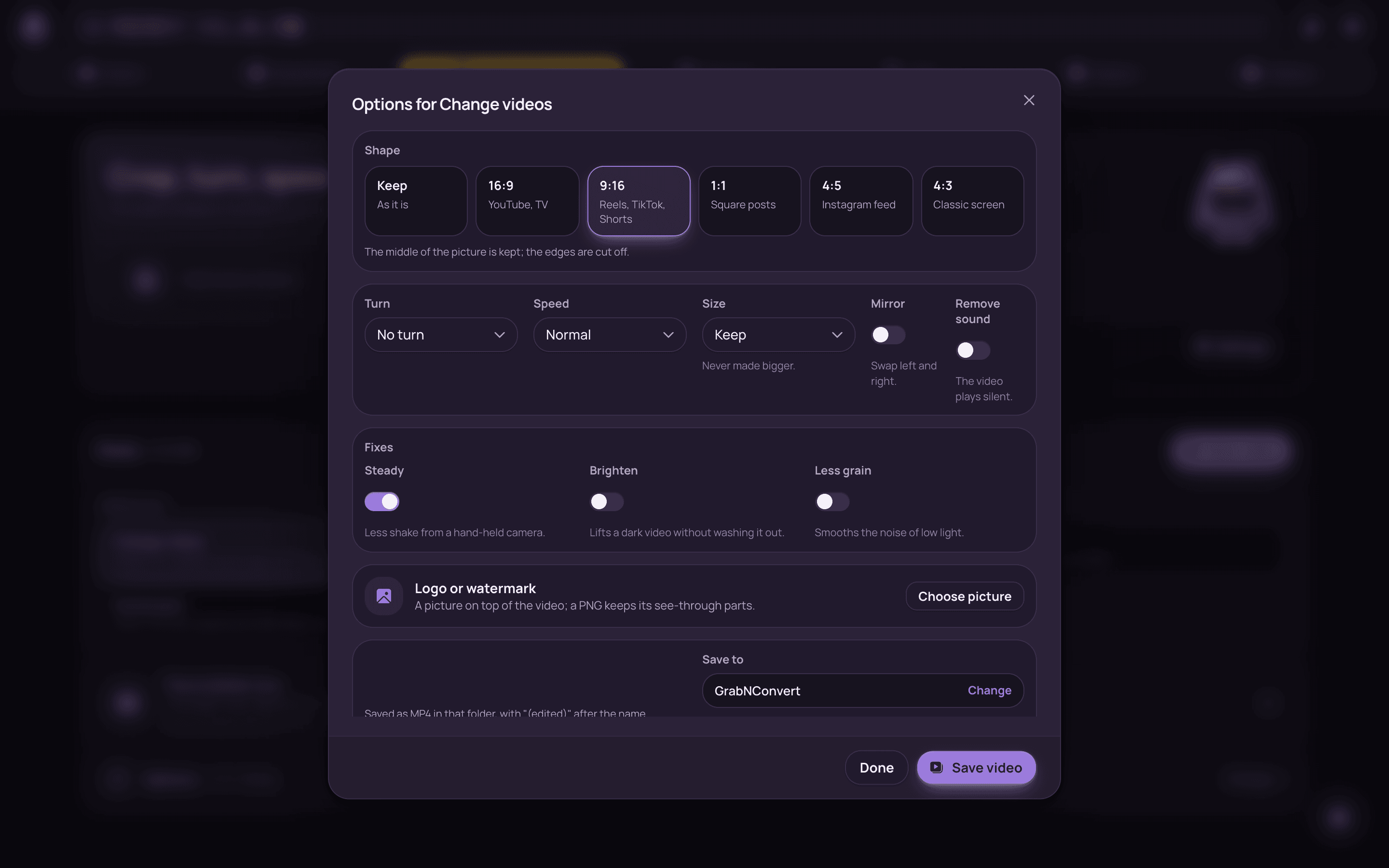
The edits a video needs before it goes out, without a video editor.
- Change the shapeReels, TikTok and Shorts (9:16), YouTube (16:9) or square, at up to 4K, 1080p, 720p or 480p. Turn or mirror it too.
- Speed, sound, logoSpeed it up or slow it down and voices keep their pitch. Take the sound out. Put your logo in a corner.
- Join clips, save stillsJoin clips into one video in the order you choose, or save a picture every few seconds.
- Steady, Brighten, Less grainTake the shake out of hand-held video, lift a dark video without washing it out, smooth low-light noise. They combine with the other changes.
2 more
- Social packOne video becomes every copy social media wants in one go: 9:16, 16:9, square and a small WhatsApp copy, with subtitles written down and burnt into each if you turn that on.
- From the notch tooDrop a video on the notch and the same form, fixes included, opens there.
Pictures
Pictures in, pictures out. And your screen.
Convert and resize photos, take their background away, capture and mark up your screen, make stickers and thumbnails.
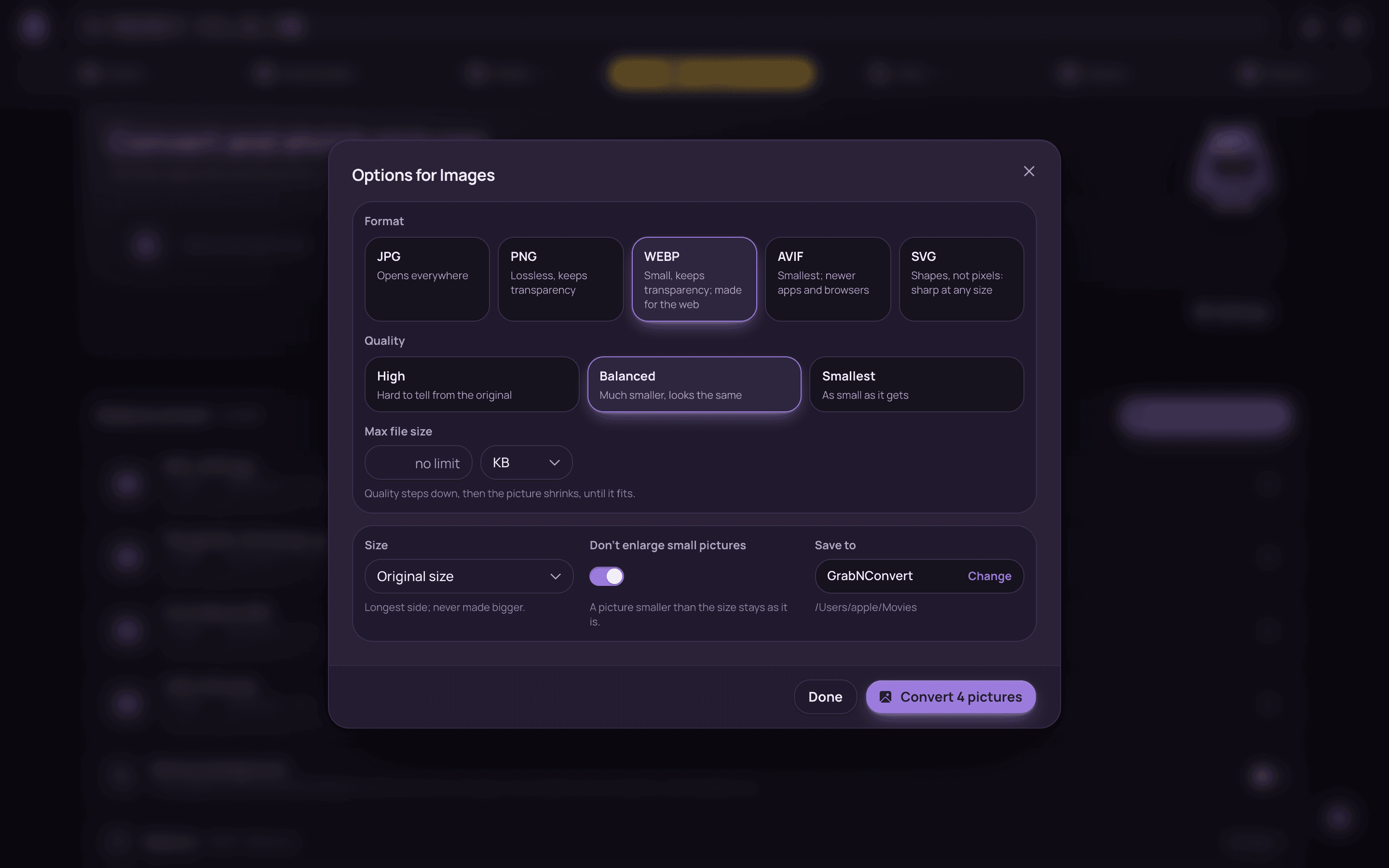
- Convert picturesJPG, PNG, WebP and AVIF out of JPG, PNG, WebP, AVIF, iPhone HEIC, TIFF, BMP and GIF, many at once.
- Resize and qualityPresets for quality, a longest side in pixels, and the right way up from the photo's own orientation.
- SVGTraces a logo, icon or drawing into shapes that stay sharp at any size. Fine, balanced or simple detail; full colour or black and white.
- Location stays homeLocation and camera details are never copied into the new picture.
6 more
- Remove backgroundCuts the subject out and makes the background see-through, as PNG or WebP. An AI model on your computer; Apple Silicon Macs and Windows.
- Screen recorder (Mac)Press ⇧⌘2, or use the menu bar. The video zooms in where you click and follows the pointer smoothly, saved at 1080p, 1440p or 4K.
- Screenshot⇧⌘6 or Ctrl+Shift+6 in any app. An area, a window or the whole screen, then arrows, boxes, highlights, text, a blur over private bits and a crop, with undo. Copy it, save it as PNG, keep it on the shelf, or copy its text.
- Thumbnail makerSlide to the moment you want, type a headline and a second line, pick a look, a colour and the size, and save a 1280 × 720 JPG for YouTube.
- Sticker makerWhatsApp (512 × 512 WebP under 100 KB) and Telegram stickers: the subject cut out, a white outline, fitted with a margin. A video or GIF becomes an animated sticker. Many at once for a pack.
- Voice recorderOne press records the microphone to an M4A in your folder. Play it back, have Whisper write it down into a text file, or open it in Audio tools.
Files
Whole folders, names and space.
The chores around the files themselves. Nothing is ever overwritten.
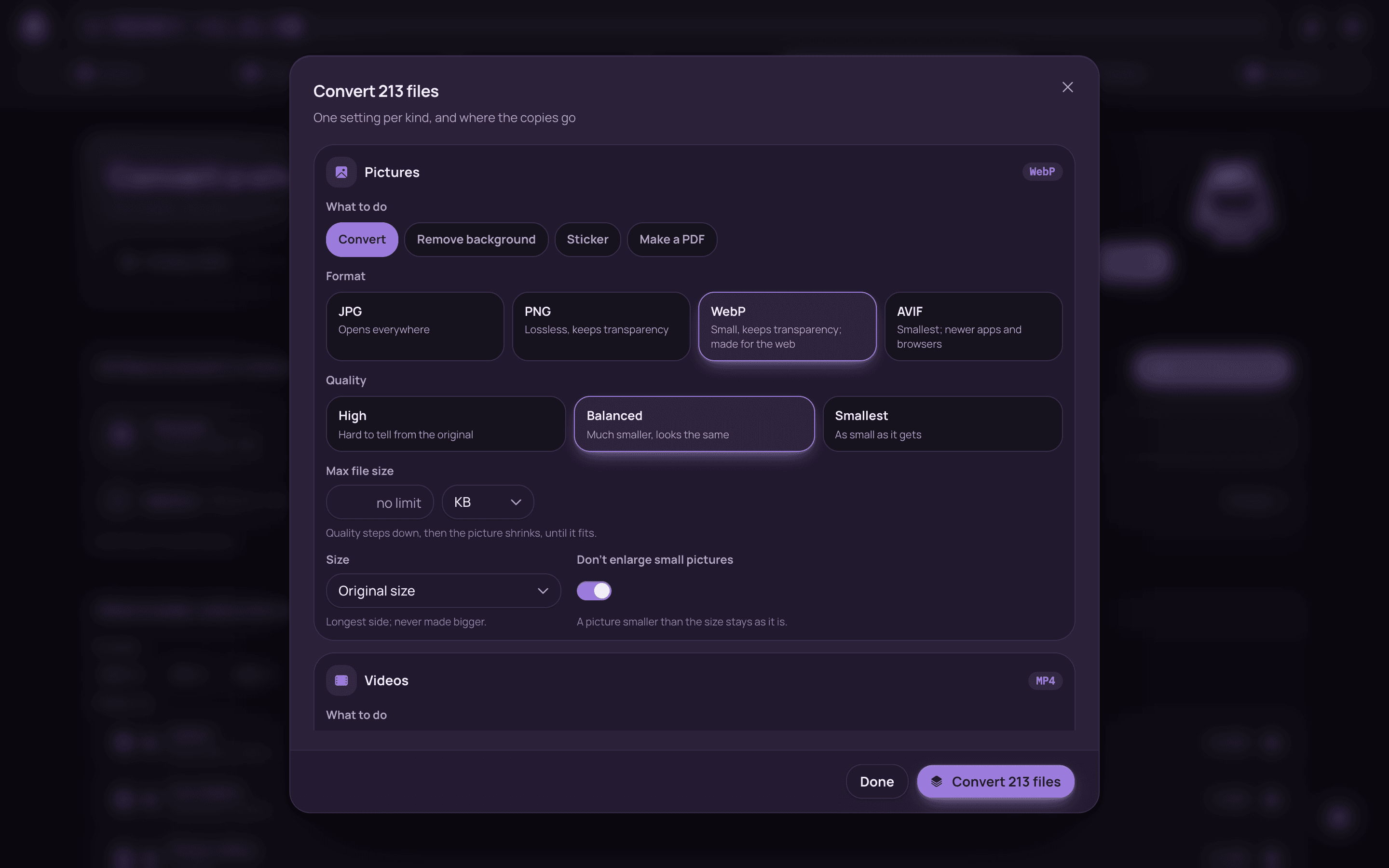
- Folder convertPick a folder and the scan counts every picture, video and song inside it by kind, format and folder; untick what should stay. One setting per kind, copies beside the originals in a folder named after the setting or under one folder of your choice. Files done before are skipped, so a second run only does the new ones.
- Rename and organiseTidy names for many files at once from a pattern (the old name, a number, the date, the folder), find and replace, letter case and numbering. Sort them into folders by kind, month or extension. A live preview, nothing overwritten, and the last run can be undone.
- Free spaceScan a folder and see the files that are there twice (same bytes, whatever the name) and the fifty biggest. Tick what can go and it moves to the Trash, never deleted outright. The oldest copy is kept; hidden files, apps and photo libraries are left alone.
- Right-click a fileIn Finder: Services → Compress, Convert, Remove background, Make a PDF, Subtitles, Rename or Keep on the shelf with GrabNConvert. In Explorer: a GrabNConvert menu. The app opens straight on the right page.
Merge, split, shrink, sign.
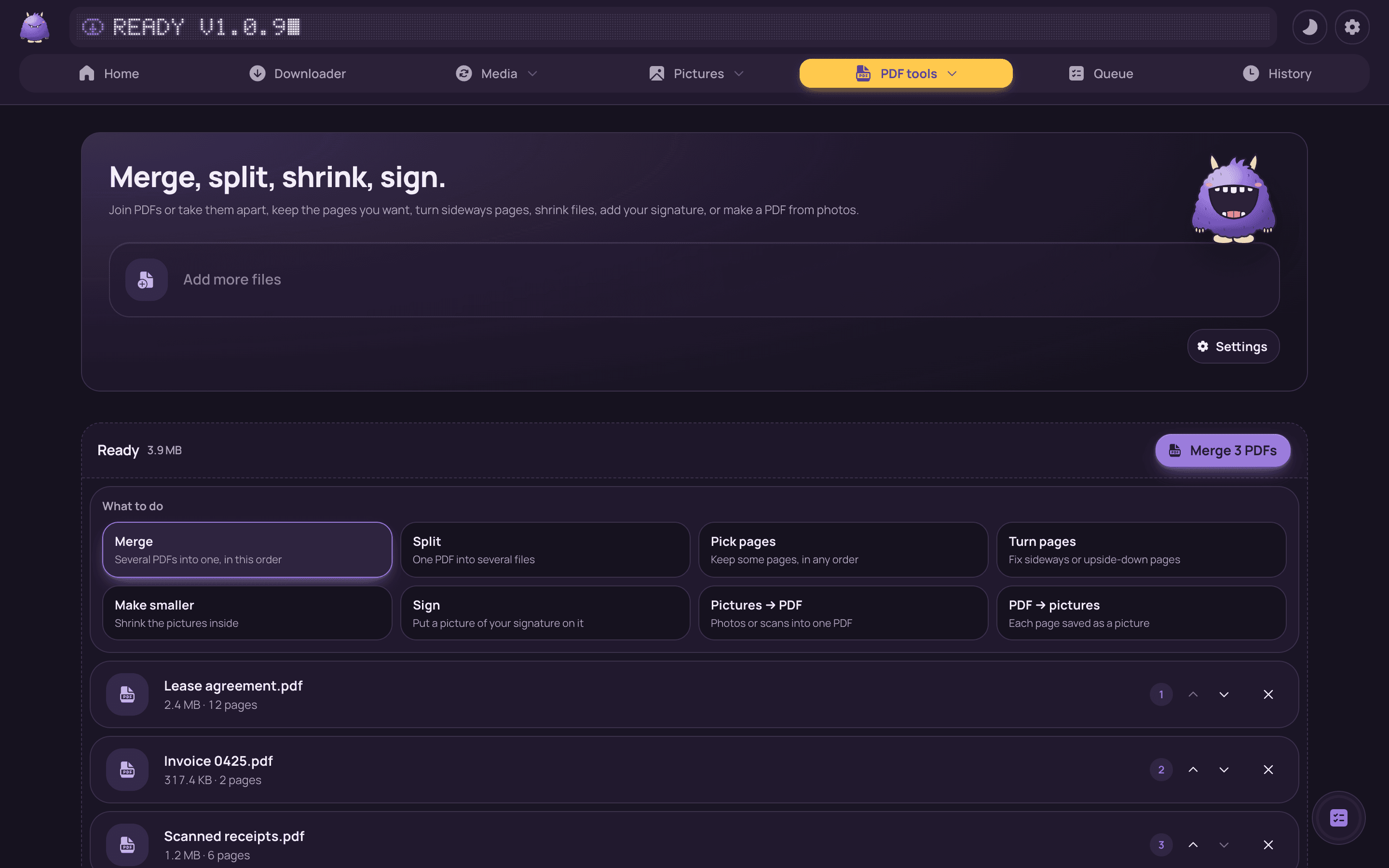
Every everyday PDF job in one place, on your computer. The original PDF is never changed.
- Merge and splitJoin PDFs in the order you choose, or split one into parts.
- Pick and turn pagesKeep only the pages you want, in any order. Turn sideways or upside-down pages the right way up.
- Make it smallerShrink the pictures inside, so a scanned PDF fits an email.
- Sign itPut a picture of your signature on the page.
- Photos in, pictures outMake one PDF from photos or scans, or save every page as a picture.
Phone and computer, no cable.
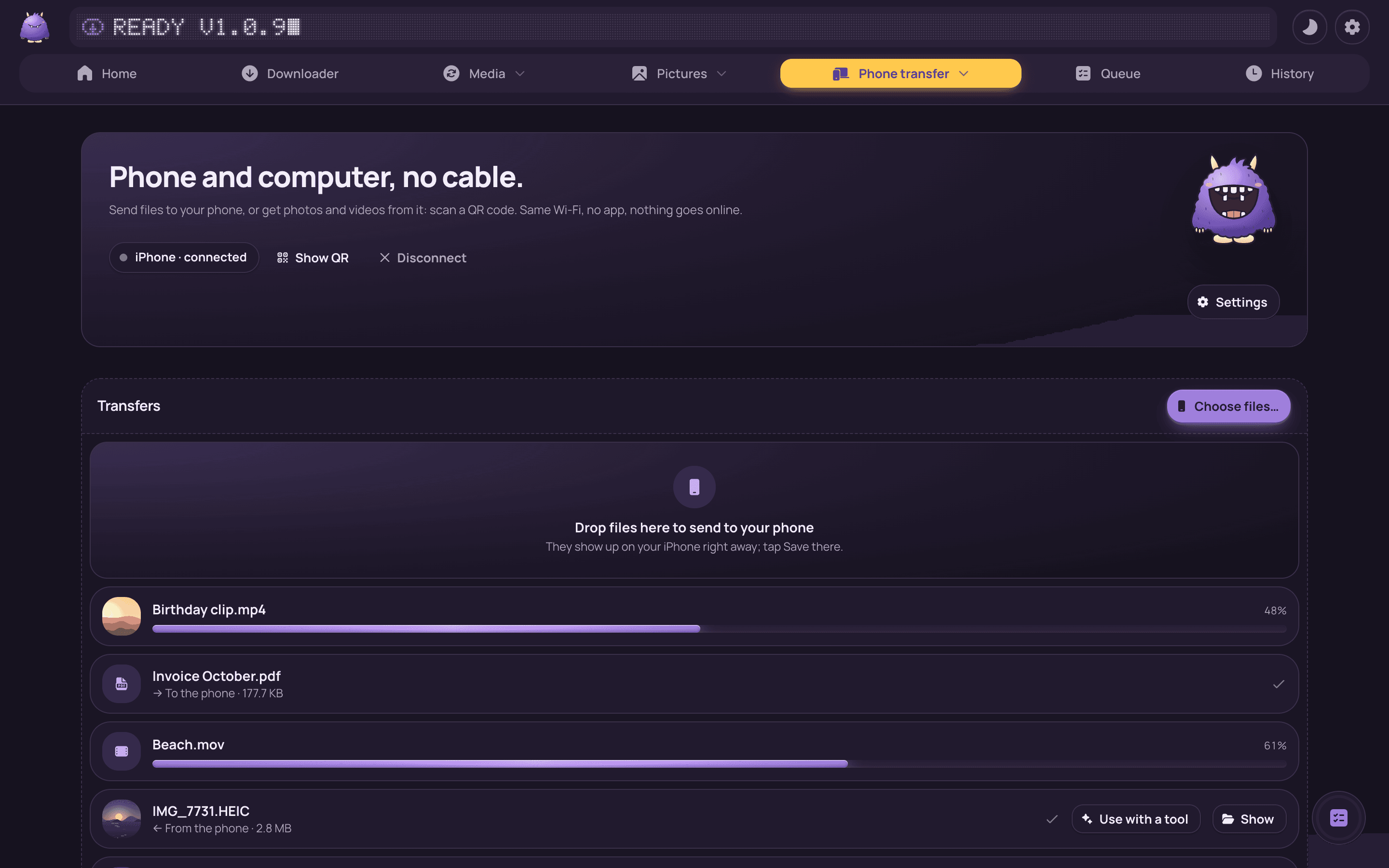
A phone on the same Wi-Fi scans one QR code. No app on the phone, and nothing goes to the internet.
- Pair onceOne code pairs the phone. After that the page just says "iPhone · connected", with Show QR and Disconnect beside it.
- Send to phoneDrop files on the Phone page, or choose Send to phone for a file on Home, on the notch or for a finished job. They appear on the phone by themselves, each with a Save button; on an iPhone, pictures and videos go into Photos.
- Get from the phoneThe phone's page sends photos, videos and files to the computer, into the folder you choose.
- One list, both waysNewest first, with a progress bar while the bytes move and a tick when a file is done. Received files open in any tool.
- Only on your Wi-FiThe address has a random key, and the link stops working when the app closes it.
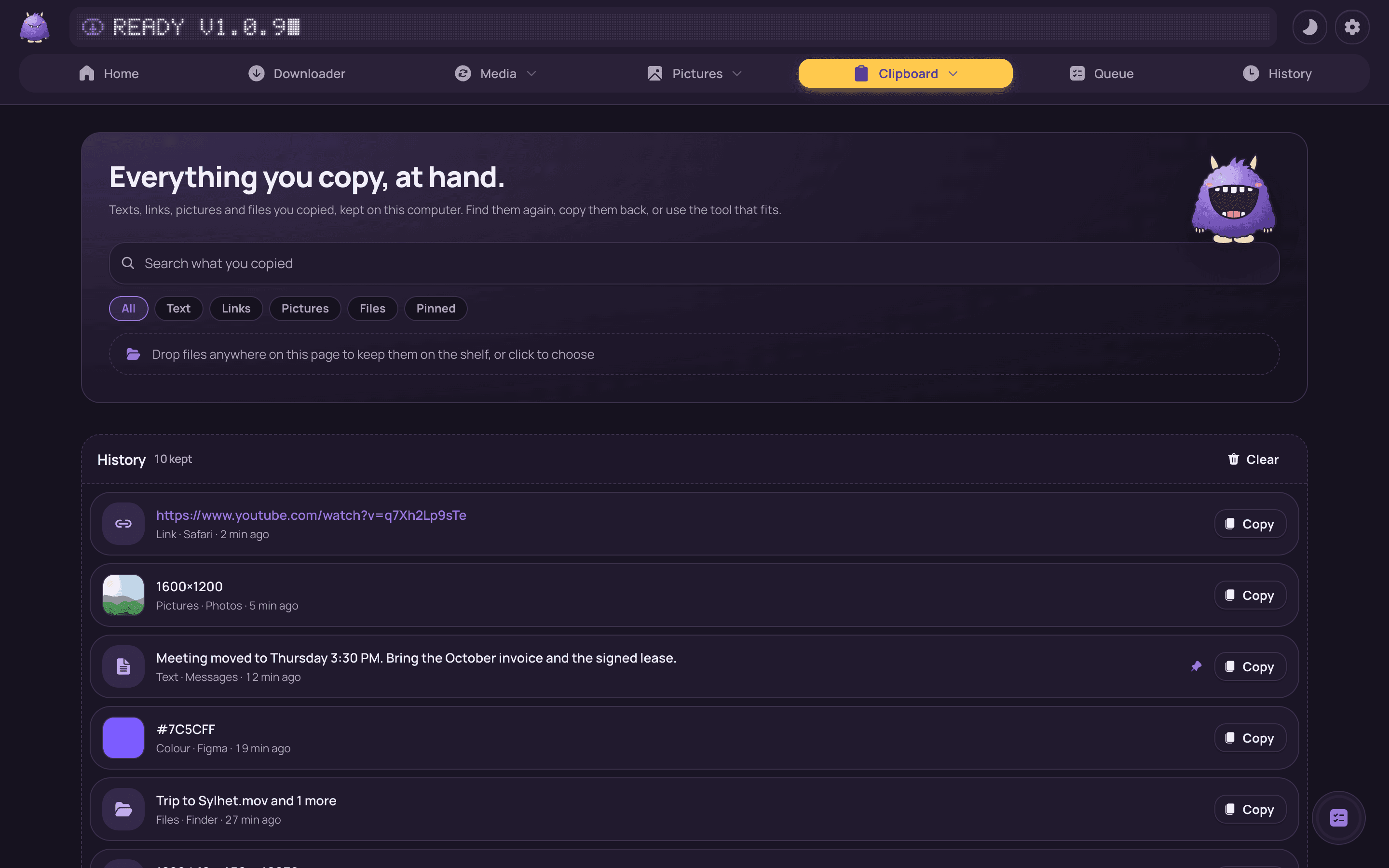
Everything you copy, to hand.
Only on this computer, and only once you turn it on. Password managers' copies are never kept.
- Smart clipboardRemembers texts, links, pictures and files you copy. Search, pin, copy anything back. Pictures can be saved, converted, cut out or made into a PDF.
- Tools that fit the textA link offers a download or a copy without tracking; a sum shows its result; a colour shows HEX, RGB and HSL. Change case, clean up spaces, sort lines, Base64, tidy JSON, a QR code for your phone.
- The popup⌥⌘V (Ctrl+Alt+V) in any app opens your history at the top of the screen. Type to search, arrows and Enter or ⌘1–9, and it pastes into the app you were in. Turn off "Paste right away" to only copy; change the shortcut on the page.
- The shelfDrop files there, or choose "Keep on the shelf" on Home or the notch. Drag them into any app, AirDrop or share them, copy them for pasting, make a ZIP, or open them with a tool. The files stay where they are.
2 more
- Copy text from a picturePictures in the history, on the shelf and in Screenshot can have their text read out and copied, with the computer's own text recognition (macOS and Windows).
- A peek from the notchWith history on, every copy peeks out of the notch for a moment with what was copied; a link still opens the download form.
Around the tools
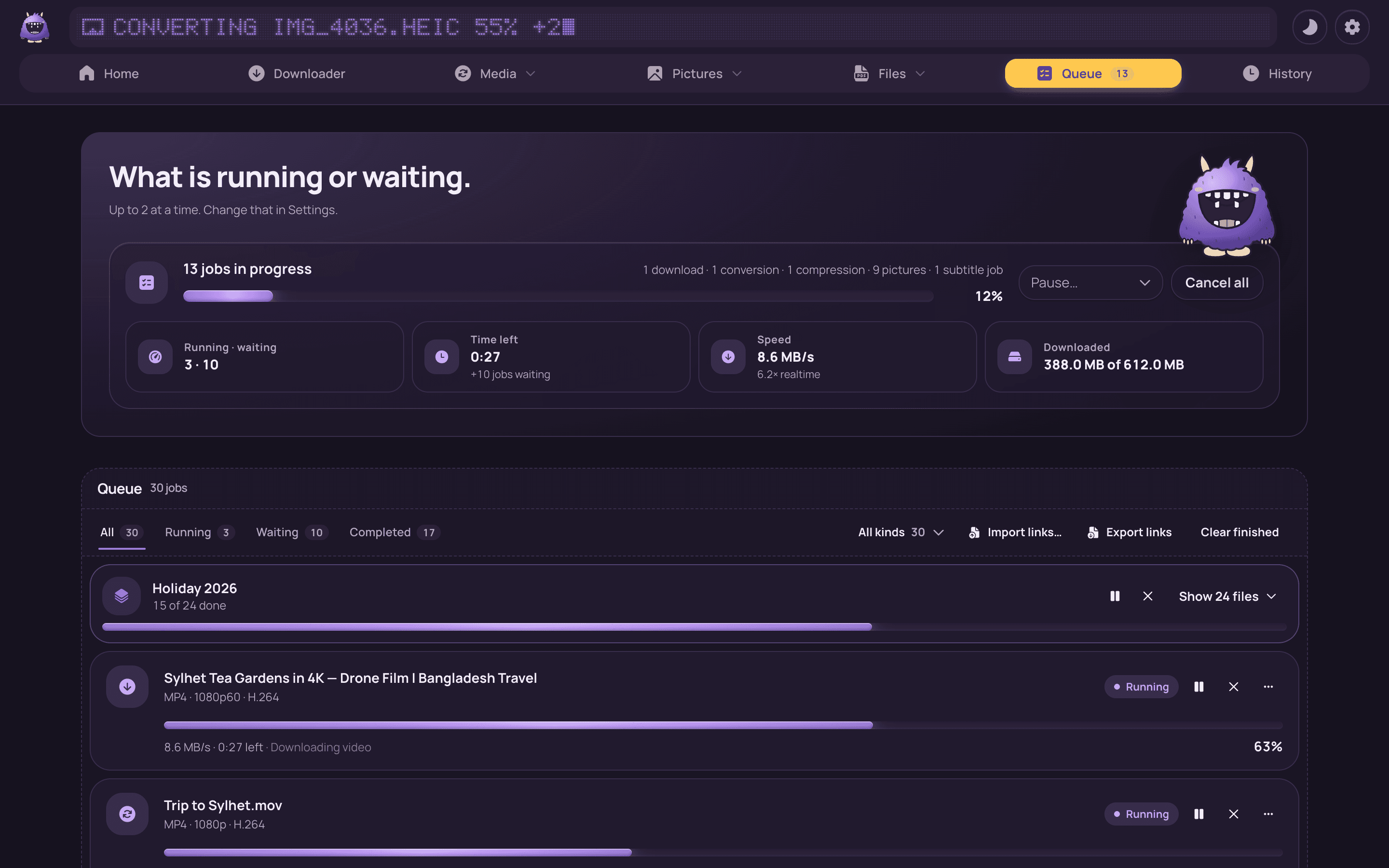
One queue, real numbers.
Everything you start lands in the same place, with the figures that matter.
- One queue for every jobPercent, speed, time left, bitrate and the encoder in use, per job and overall.
- Batches as one rowA folder's files, or many dropped at once, show as one row with their count and one progress bar. Pause, resume, cancel or retry all of them; the files unfold below.
- Pause, schedule, quiet hoursPause the queue and resume at a time you pick. Hold new jobs during your working hours.
- Speed capLimit download speed so the rest of the house keeps its connection.
5 more
- Watch folderPoint it at a folder. New files that land there are converted or compressed with the preset you saved.
- Run next, move to endReorder what is waiting without cancelling anything.
- Notifications and historyA notification when a job finishes; History keeps what finished, searchable, with a click to open the file.
- Progress in the menu barA menu-bar icon (system tray on Windows) shows the overall percent while you work elsewhere.
- Picks up after a crashJobs are remembered on disk. Interrupted ones are marked and offered a retry; nothing half-written is left behind.
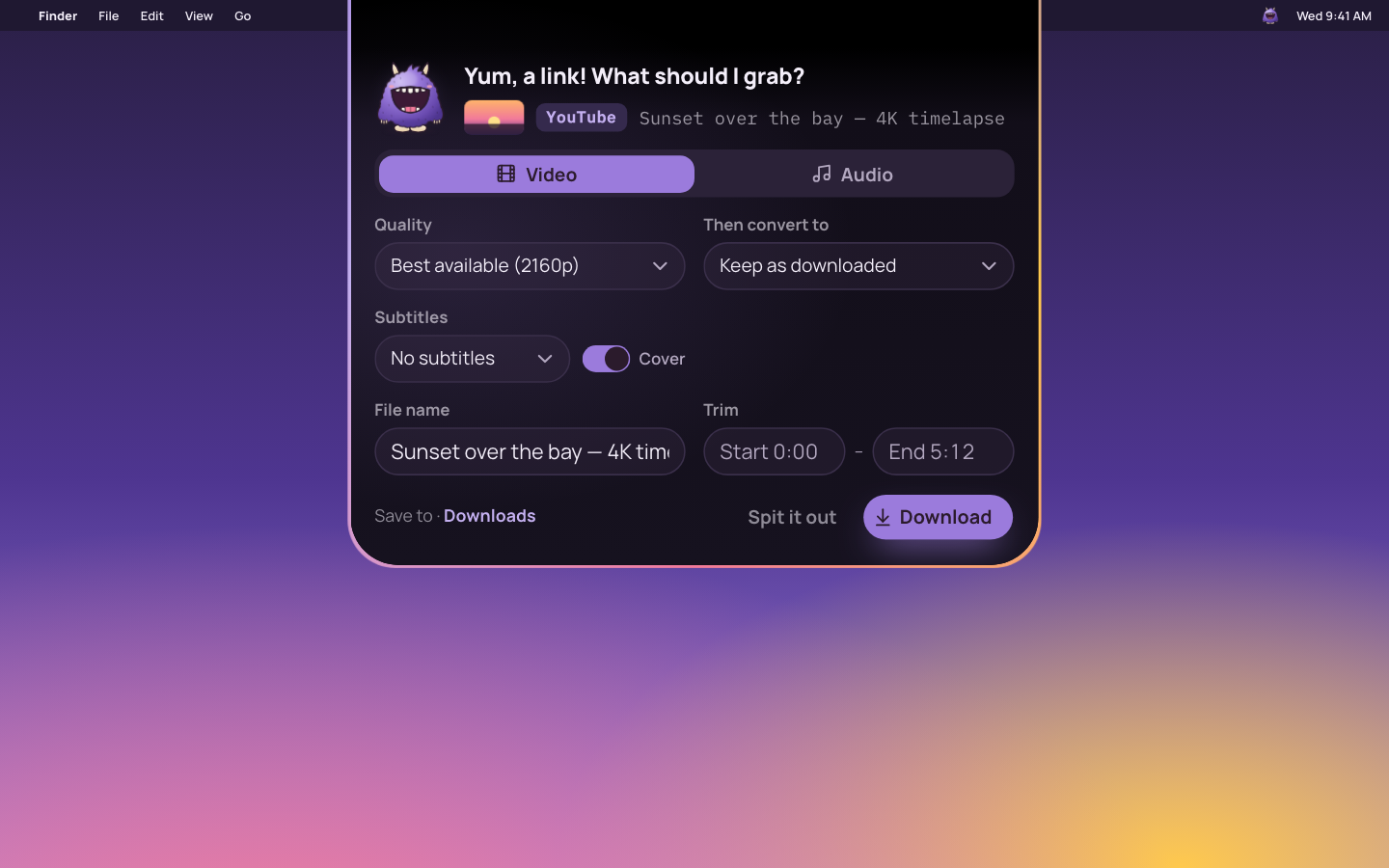
Feed the notch.
On a Mac, the top of the screen becomes a drop zone. The mascot lives in the notch, or the top middle of a display without one.
- It sees you comingStart dragging anywhere and it peeks out. Come close and it opens its mouth wide; drop, and it chews.
- Files: every tool that fitsThe same cards as Home: a video gets Convert, Compress, Subtitles, Social pack, Thumbnail or a sticker; a picture gets Convert, Remove background, Make a sticker or Mark it up; PDFs get the PDF tools; a folder gets Folder convert, Free space and Rename. Then that page's own options, in the notch.
- Links: real qualitiesThe app checks the link and the notch lists what the site offers, with sizes, as Video and Audio tabs. Copy a link anywhere and the mascot comes out with the same form by itself.
- Starts from the notchPress Convert, Compress or Download and the job runs in the app, which opens to show it.
3 more
- Stays out of the wayNever over full-screen apps, always on your main display, takes no clicks unless it is open.
- Ready at loginOpen at login starts the app in the menu bar, without a window, so the notch is always there. Both can be switched off in Settings.
- On Windows: a popupCopy a video link and the mascot drops in at the top of the screen with the download options, without taking you out of the app you are in. It tucks itself away after a few seconds unless you point at it.
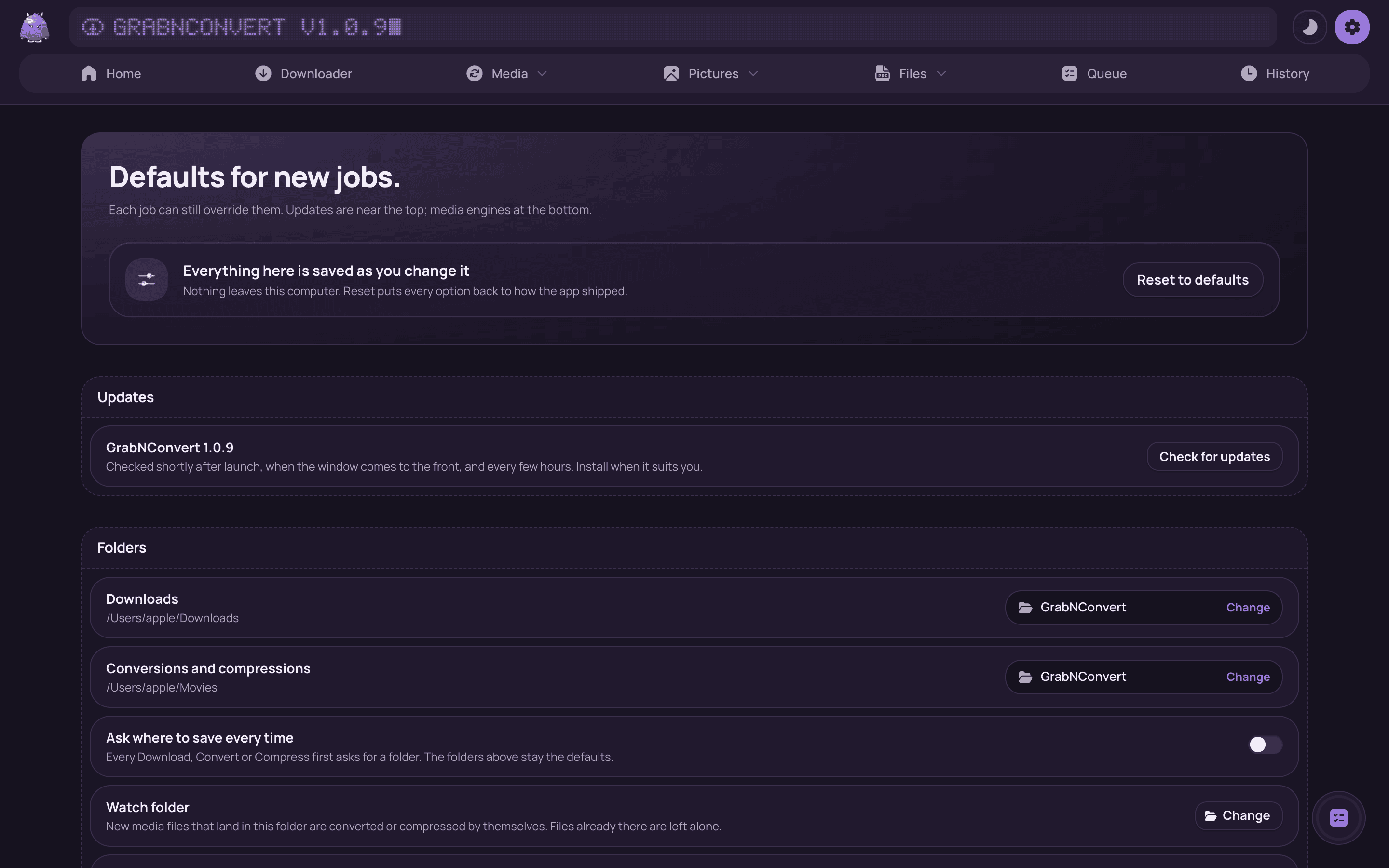
Native, quiet, and up to date.
A small desktop app for macOS and Windows, built to stay out of the way.
- 14 languagesEnglish, Bangla, Hindi, Spanish, Portuguese, French, German, Indonesian, Turkish, Russian, Chinese, Japanese, Korean, Vietnamese.
- Dark and lightFollows the system, or pick one. The status display at the top tells you what is happening at a glance.
- Updates itselfNew versions are signed and install with one click. The media engines can be updated separately when a site changes.
- Keyboard first⌘1 to ⌘6 switch pages, ⌘L focuses the link box, ⌘O adds files, ⌘V pastes a link from anywhere. ⇧⌘6 takes a screenshot and ⌥⌘V opens the clipboard, from any app.
3 more
- Every tool in the top barHome, Downloader, then three menus like Home's groups (Media, Pictures, Files) with each page inside, then Queue and History. Drop a file anywhere and every tool that fits is offered.
- A little motionHeadlines rise in word by word, the mascot drops in and lands, the status display flickers on, and the mascot is asleep when the app opens until it wakes with a hop. Click any mascot and it takes a bite.
- Nothing uploadedFiles, links, history and settings stay on your computer. The account stores your email and the computers you use.
- One account, two computersSign in with Google on the website; the app picks it up. Use it on a Mac and a Windows PC with the same licence.
Try all of it free for 7 days.
Then one payment of $4.99 keeps it, with every update included.