 GrabNConvert

A whole folder at once, and the clipboard remembers.
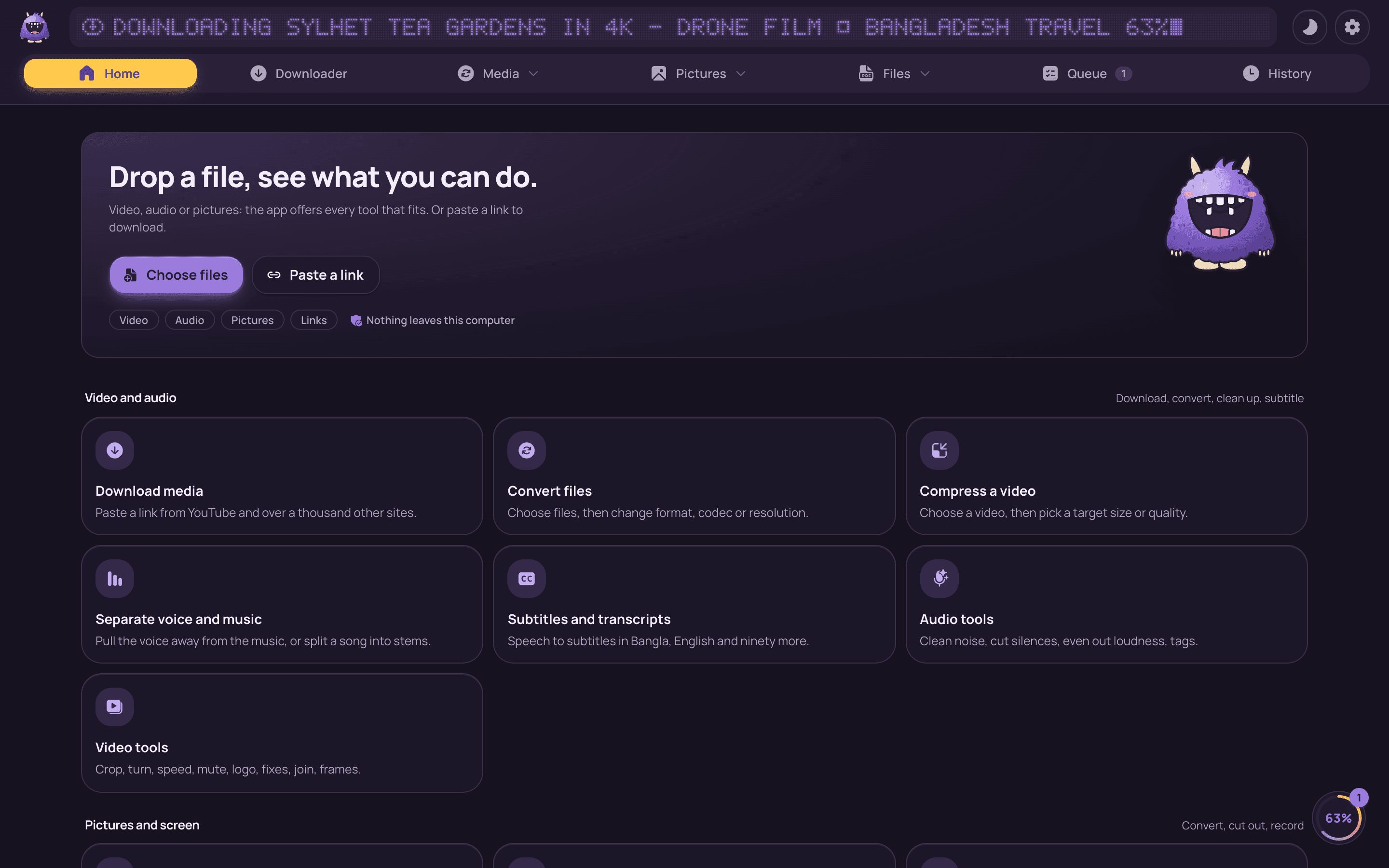
Version 1.0.5 taught GrabNConvert to listen, cut out and record. Version 1.0.8 is about the work around your files: convert a whole folder in one go, keep everything you copy to hand, merge and split PDFs, reshape a video for every social network, mark up a screenshot, move files to and from your phone, and have subtitles come out in Bangla. Eleven new pages, every one of them on your own computer. Nothing is uploaded.
Installed apps update by themselves: the app shows "What's new" and installs with one click. New here? Download GrabNConvert and try everything free for 7 days.
Folder convert: the camera roll, in one go
Open Folder convert (Home → Files, or drop a folder on Home or the notch) and pick a folder. The scan counts the pictures, videos and songs inside it, folder by folder; untick what should stay as it is. Then one setting per kind: format, size and quality for pictures, a maximum size in megabytes for videos, even volume for songs. The copies go beside the originals in a folder named after the setting, such as "WebP 1080", or under one folder of your choice. It all runs as one batch in the queue, and files converted before are skipped, so next month's run only does the new photos.
Smart clipboard, and a popup in any app
The Clipboard page remembers the texts, links, pictures and files you copy. It is off until you turn it on, it stays on this computer, and copies from password managers are never kept. Search it, pin what you need again, copy anything back. Each text gets tools that fit it: a link offers a download, a sum shows its result, a colour shows HEX, RGB and HSL, and there is change case, sort lines, tidy JSON and a QR code for your phone.
The part you will use most is not on the page. Press ⌥⌘V (Ctrl+Alt+V on Windows) in any app and your history opens at the top of the screen; pick an item and it is pasted into the app you were in. Beside the history is the shelf: keep files there while you work, drag them into any app, AirDrop or share them, or make a ZIP. Pictures in both places can have their text read out and copied.
PDF tools
The chores that usually send people to a website now happen on your disk. Merge PDFs, split one into parts, keep the pages you want in any order, turn sideways pages, make a PDF smaller, put a picture of your signature on it, make one PDF from photos or scans, or save its pages as pictures. Dropping PDFs on Home or the notch offers these straight away; the first use downloads a small engine once.
Video tools and the Social pack
A new Video tools page holds the edits a video needs before it goes out: a new shape for Reels, YouTube or a square post, turn or mirror, speed with voices kept in pitch, sound out, a logo, joined clips, or a still every few seconds. Three fixes sit underneath: Steady for hand-held shake, Brighten for a dark video, Less grain for low-light noise.
The Social pack does the whole round at once: one video becomes a 9:16 copy for Reels, TikTok and Shorts, a 16:9 copy for YouTube, a square one, and a small copy for WhatsApp. Turn subtitles on and they are written down once and burnt into every copy.
Screenshot, with a pen
Press ⇧⌘6 (Ctrl+Shift+6 on Windows) in any app. Take an area, a window or the whole screen, then draw on it: arrows, boxes, highlights, text, a blur over the private bits, a crop, with undo. Copy it, save it as PNG, keep it on the shelf, open it in Images, or copy the text in it.
Phone transfer, no app required
Open Phone transfer and a QR code appears. Scan it with a phone on the same Wi-Fi and the phone's browser can send photos, videos and files to the computer, and take the shelf's files back. Nothing to install, nothing through the internet, and the address carries a random key.
Right-click a file
On a Mac, right-click a file in Finder and look under Services: Compress, Convert, Remove background, Make a PDF, Subtitles, Rename or Keep on the shelf with GrabNConvert. On Windows it is a GrabNConvert menu in Explorer's right-click menu. The app opens on the right page with the files already in it.
Subtitles that come out in your language
The Subtitles page could already write down ninety languages. Now, under Subtitles in, pick Bangla, Hindi, English or 17 other languages and the lines are translated on your computer before they are saved, put inside the video or drawn on the picture. Translate a subtitle file does the same for an SRT or VTT you already have. The model downloads once; short, plain sentences come out best.
And smaller things
- Rename and organise: tidy names for many files from a pattern, find and replace, numbering; sort them into folders by kind, month or extension. Live preview, nothing overwritten, undo.
- Free space: the files you have twice and the fifty biggest, moved to the Trash if you say so.
- Sticker maker for WhatsApp and Telegram, Thumbnail maker for YouTube, a Voice recorder whose recordings Whisper can write down, and SVG in Images.
- Copy a video link in any app and the mascot comes out of the notch on a Mac, or drops in at the top of the screen on Windows, with the download options.
- Every tool is in the top bar in three menus, Media, Pictures and Files; a batch shows as one row in the queue; and the website's motion has come to the app.
Fixed
Updating from 1.0.4 to 1.0.5 failed for some people with "Invalid symbol 123": the update feed carried the wrong signatures. The feed is rebuilt and checked before every release now. Rename's file picker took only videos, songs and pictures; it takes any file.
Private by design
Every one of these tools works on your own computer. Your photos, PDFs, clipboard and recordings are never uploaded anywhere. The only things the app downloads are the links you ask for, its own updates, and each engine or model once, the first time you use that tool.
The full list of changes is in the changelog. Questions? See Help or email us.