 GrabNConvert

Five new tools, still on your computer.
GrabNConvert started as a way to download, convert and compress video. Version 1.0.5 is the biggest update yet: it can now pull a voice out of a song, write subtitles in Bangla, clean up a recording, convert your photos and record your screen. Like everything else in the app, all of it runs on your own computer. Nothing is uploaded.
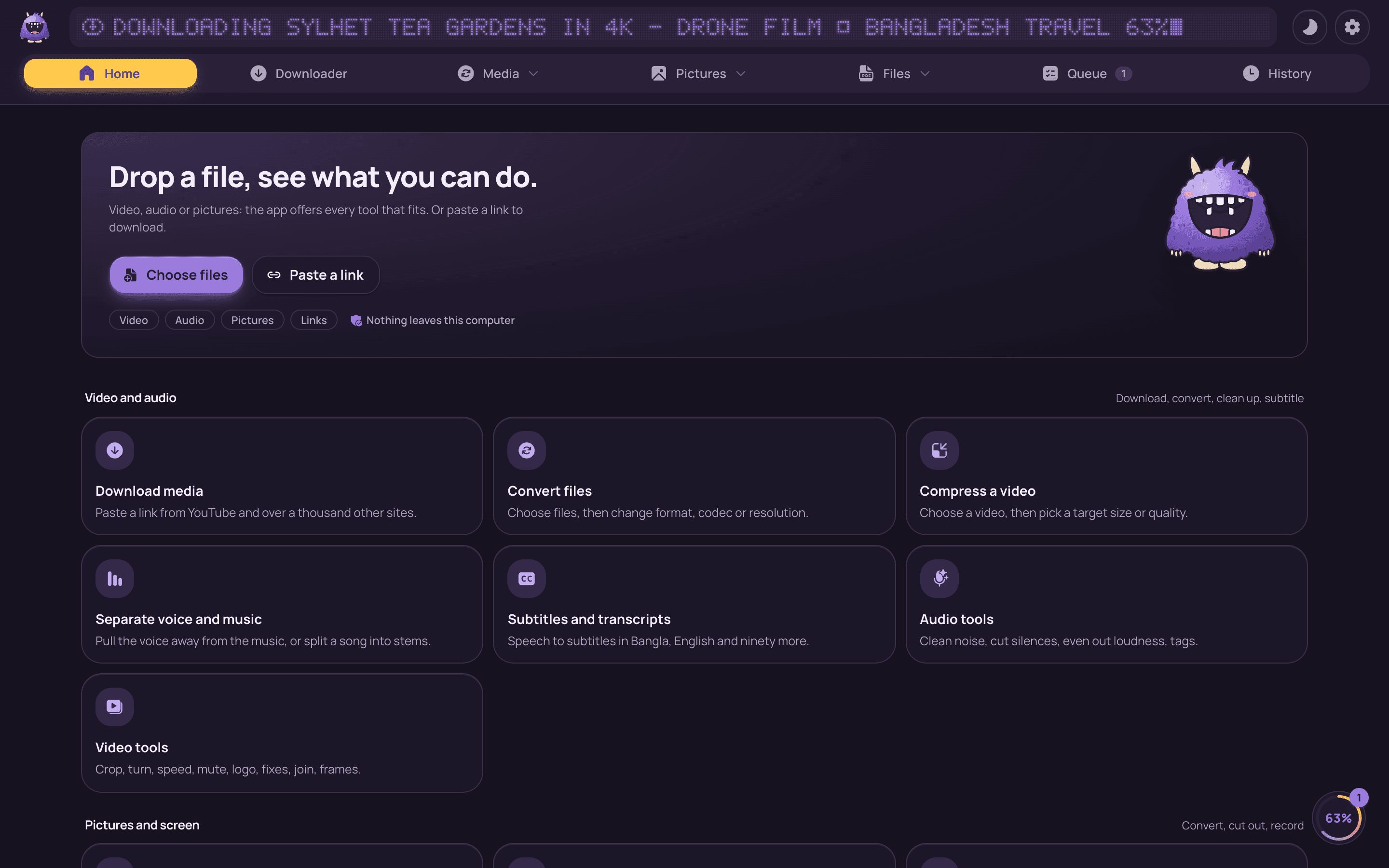
Installed apps update by themselves: the app shows "What's new" and installs with one click. New here? Download GrabNConvert and try everything free for 7 days.
Drop anything, see everything
Home is new. Drop a file, or press Choose files, and the app offers every tool that fits it. A video gets Convert, Compress, Subtitles, Separate and Audio tools. A sound file gets Convert, Separate, Transcript and Audio tools. A picture gets Convert or resize and Remove background. On a Mac, the same choices appear when you drop the file on the notch.
Separator: the voice, the music, the drums
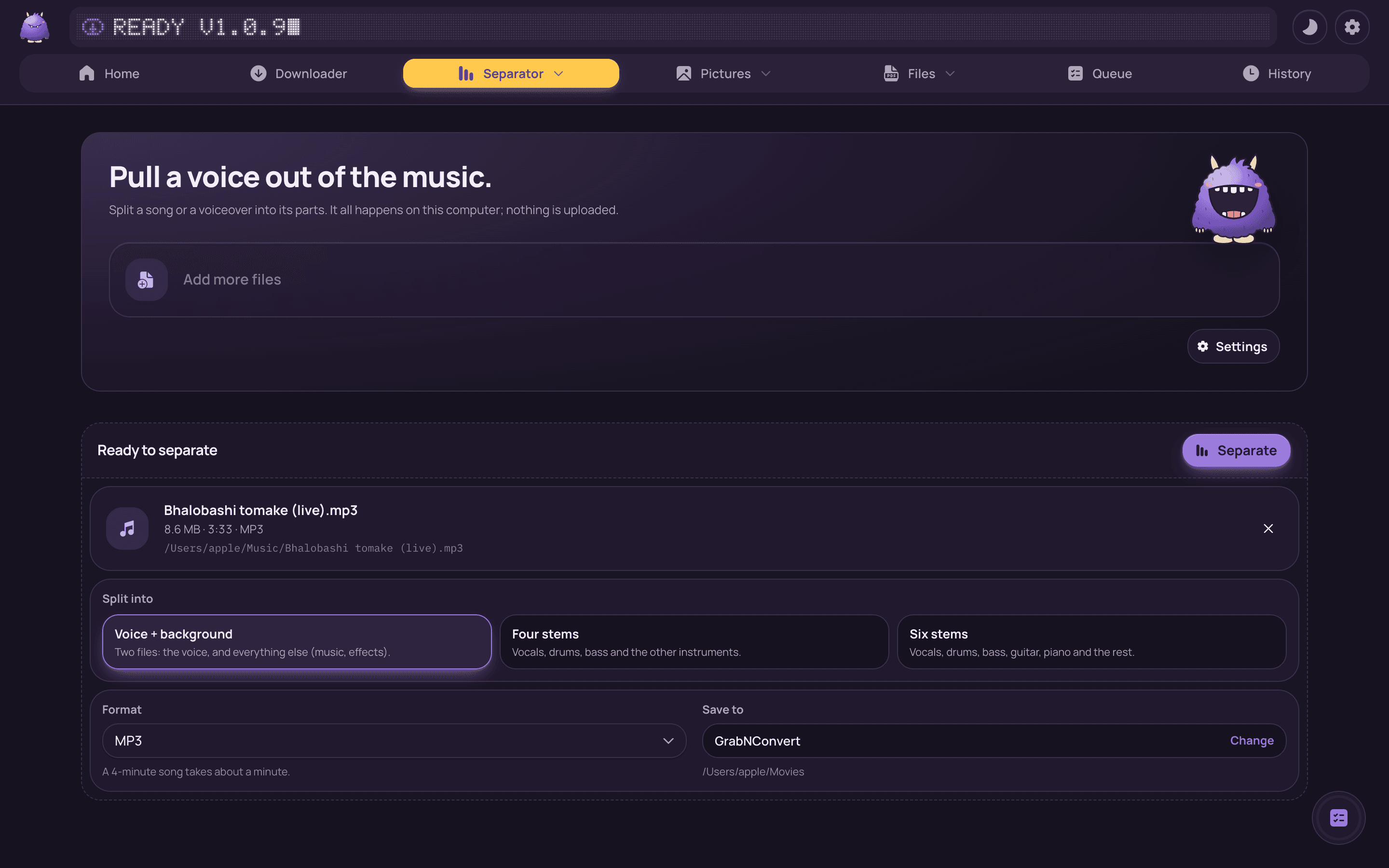
Split a song, or the sound of a video, into voice and background, which is a karaoke track in one click. Or go further: four stems (vocals, drums, bass, other) or six, which adds guitar and piano. Separator uses Demucs, a well-known open model, and needs an Apple Silicon Mac or Windows. A four-minute song takes about a minute on a recent Mac.
Subtitles in Bangla and ninety other languages
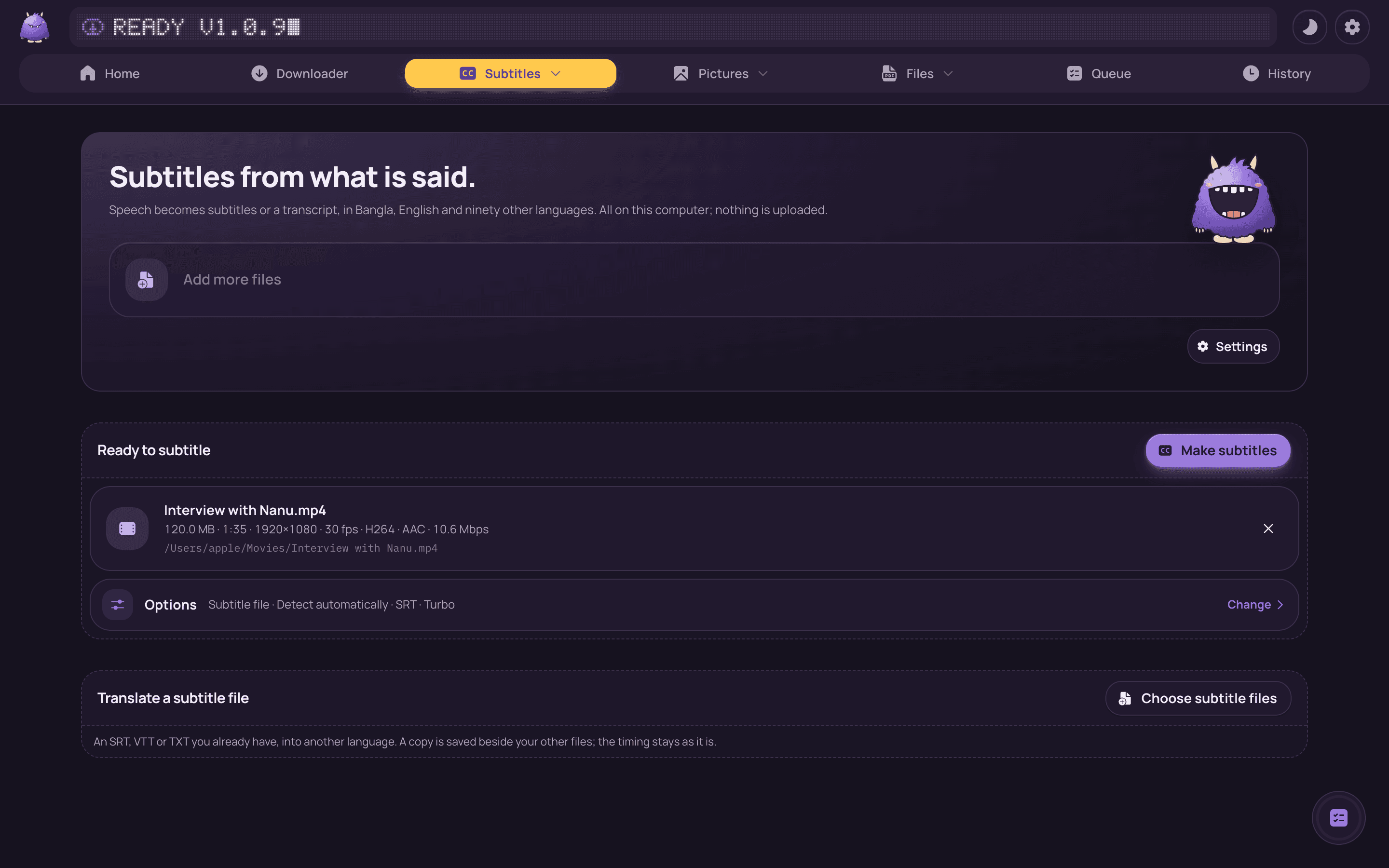
The Subtitles page listens to a video or a recording and writes down what is said, with every line on time. It understands Bangla, English, Hindi and about ninety more languages, and can translate the result to English with one switch. Choose what you get:
- a subtitle file (.srt or .vtt) next to the video,
- a copy of the video with a subtitle track you can turn on and off,
- a copy with the words burned into the picture, ready for social media,
- or a plain transcript to read or quote.
It uses Whisper, the speech model from OpenAI, running on your computer. The first time, the app downloads the model once (about 570 MB for the best one, which is the one that knows Bangla well); after that it works offline.
Audio tools: make a recording sound right
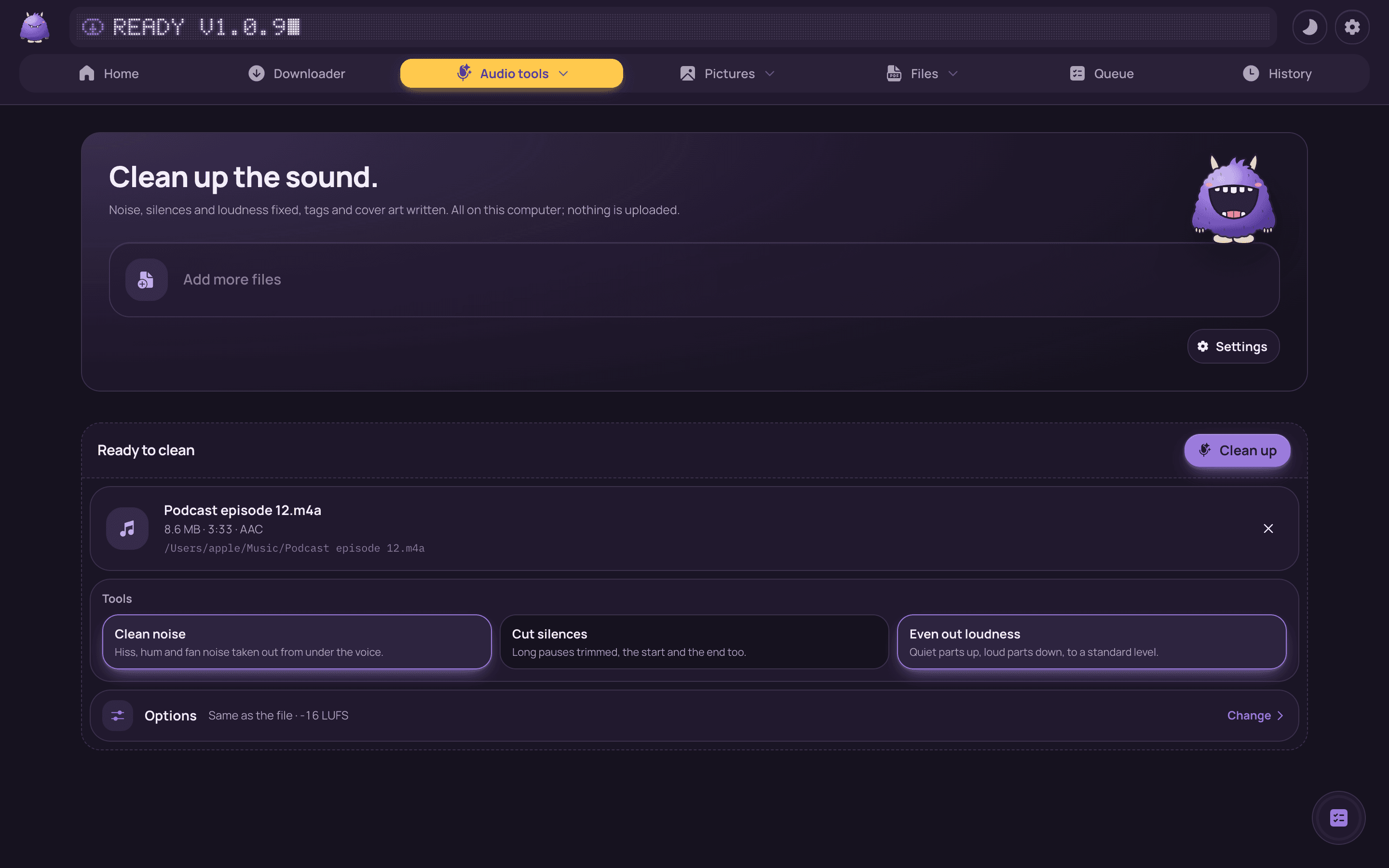
Recorded a voice note, a podcast or a lecture? Audio tools cleans the background noise, cuts the long silences, and evens out the loudness to a standard level for podcasts, YouTube or broadcast. It also writes the title, artist, album and a cover picture. Save as MP3, M4A, WAV or FLAC. Drop a video and you get its sound as a clean audio file.
Images, and a background that disappears
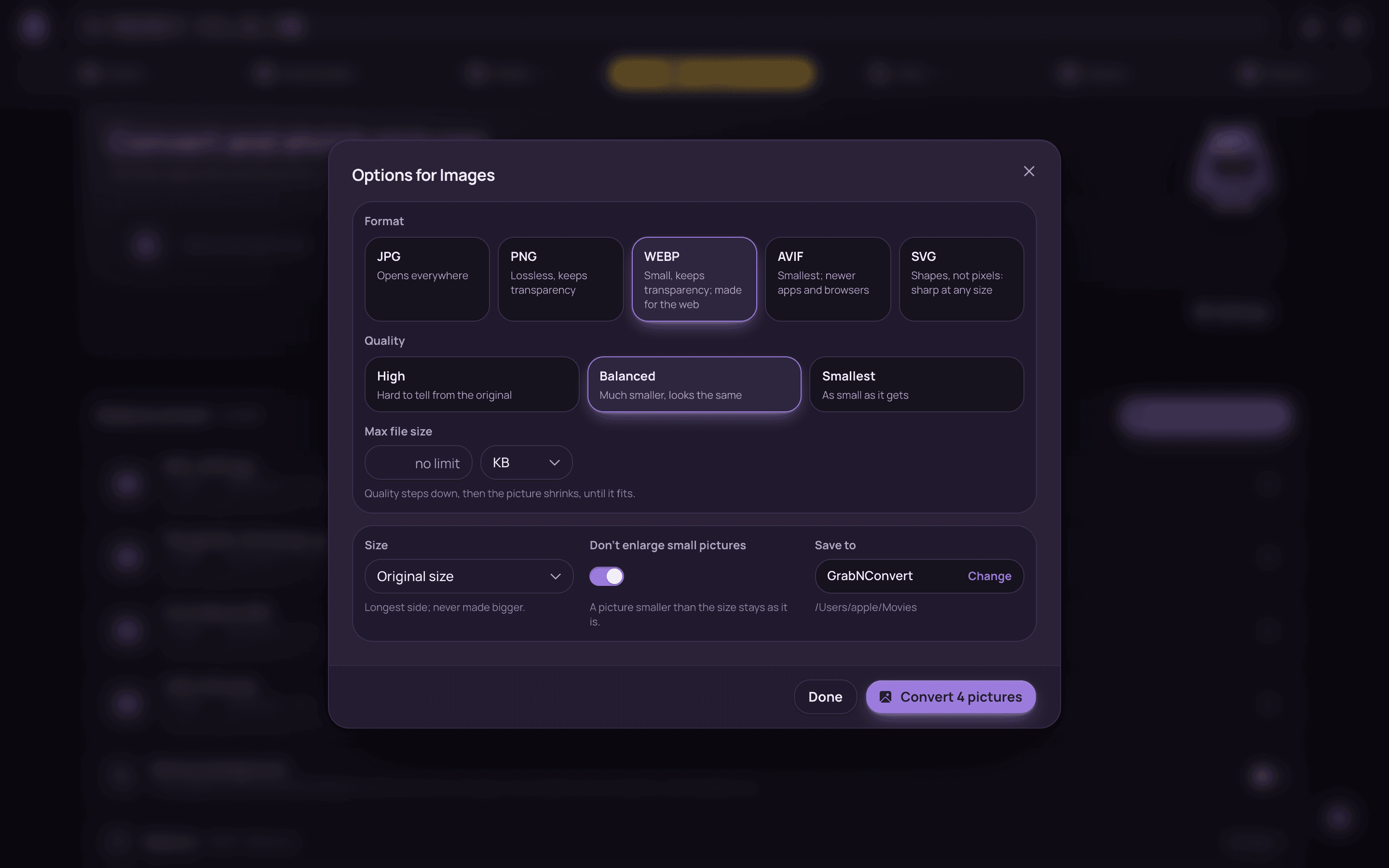
The Images page converts and resizes pictures: JPG, PNG, WebP and AVIF from almost anything, including iPhone HEIC photos, many at once. Location and camera details are never copied into the new file, so a photo you share does not say where you took it.
Switch on Remove background and an AI model cuts out the subject and leaves the background see-through, saved as PNG or WebP. It is great for product photos and profile pictures. It needs an Apple Silicon Mac or Windows.
Screen recorder for the Mac
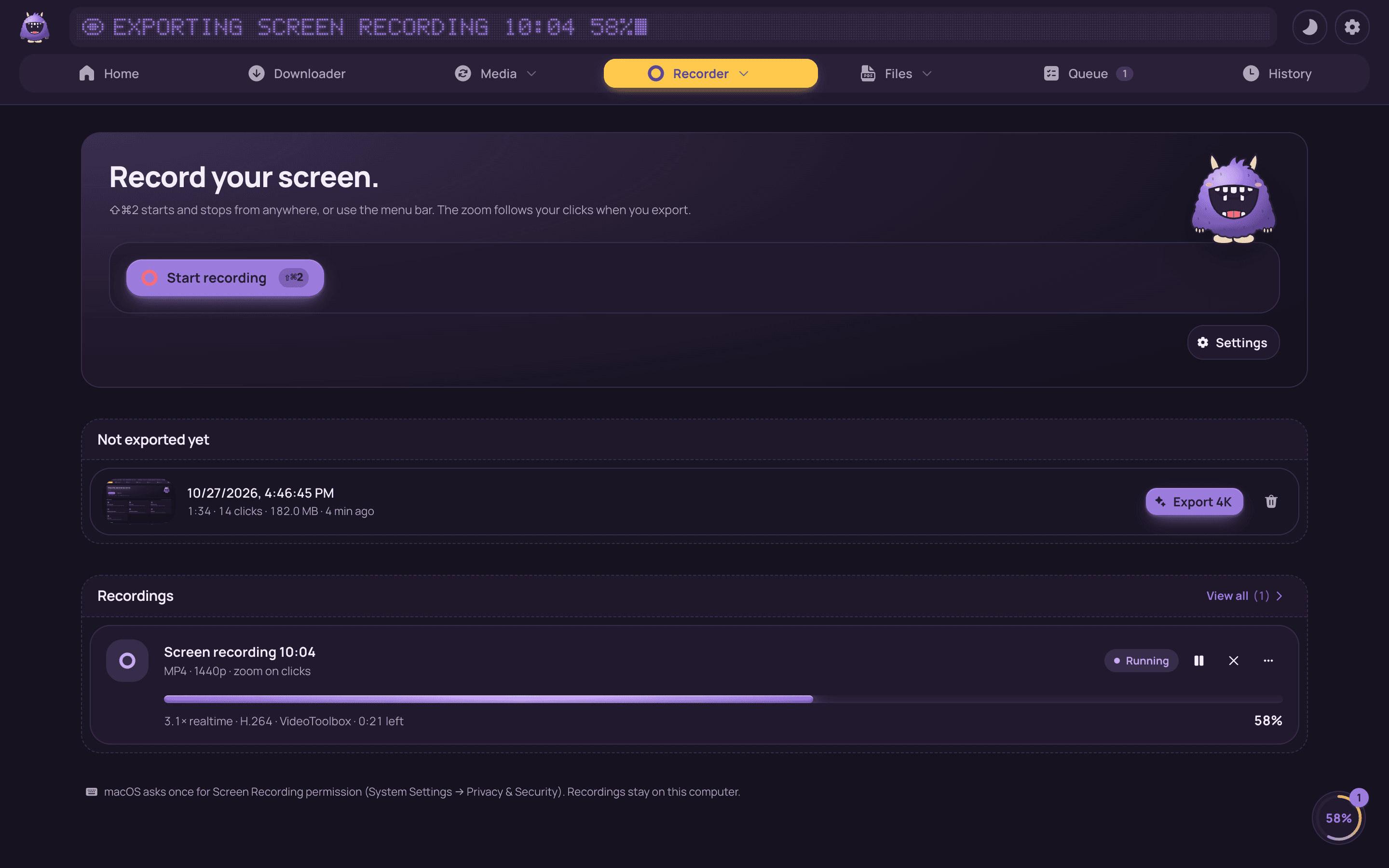
Press ⇧⌘2 anywhere, or use the menu bar, to record your screen. When you stop, the video is made for you: it zooms in where you clicked, follows the pointer smoothly, and is saved at 1080p, 1440p or 4K on a soft background with rounded corners. It is ready to share without editing.
And smaller things
- Every page has a ⚙ Settings button with its own defaults: quality, formats, folders.
- The queue button floats in the corner with a progress ring, and opens a small panel to pause or cancel each job.
- The notch on the Mac also takes pictures dragged off web pages.
- New solid icons, and on wide windows the menu gets a line of its own.
Private by design
Every one of these tools works on your own computer. Your songs, videos, recordings and photos are never uploaded anywhere. The only things the app downloads are the links you ask for, its own updates, and each AI model once, the first time you use that tool.
The full list of changes is in the changelog. Questions? See Help or email us.