 GrabNConvert

Paste a Dropbox or Drive link, get the file.
Someone sends you a Dropbox link, a Google Drive folder or a WeTransfer, and the file is big. The browser downloads it slowly, stops when the Wi-Fi drops, and starts again from zero. Version 1.0.10 of GrabNConvert takes those links the way it takes a YouTube link: paste it, press Download, and the file lands in your folder, whole, under its own name. On a Mac or a Windows PC, nothing uploaded anywhere.
Installed apps update by themselves. New here? Download GrabNConvert and try everything free for 7 days.
Which links work
- Dropbox: a shared file (dropbox.com/s/… or dropbox.com/scl/fi/…) and a shared folder, which comes as one zip.
- Google Drive: a shared file, including the big ones Google says it "can't scan for viruses". Google Docs, Sheets and Slides come as Word, Excel and PowerPoint files.
- OneDrive and SharePoint share links.
- MediaFire and pCloud download pages.
- Any plain link to a file: a zip on GitHub, a PDF on a website, an installer.
- Dropbox Transfer, WeTransfer and MEGA: these open in a download window inside the app (below).
How to download a Dropbox or Google Drive file
- Copy the share link. In Dropbox it is Share → Copy link; in Google Drive, Share → Copy link with "Anyone with the link".
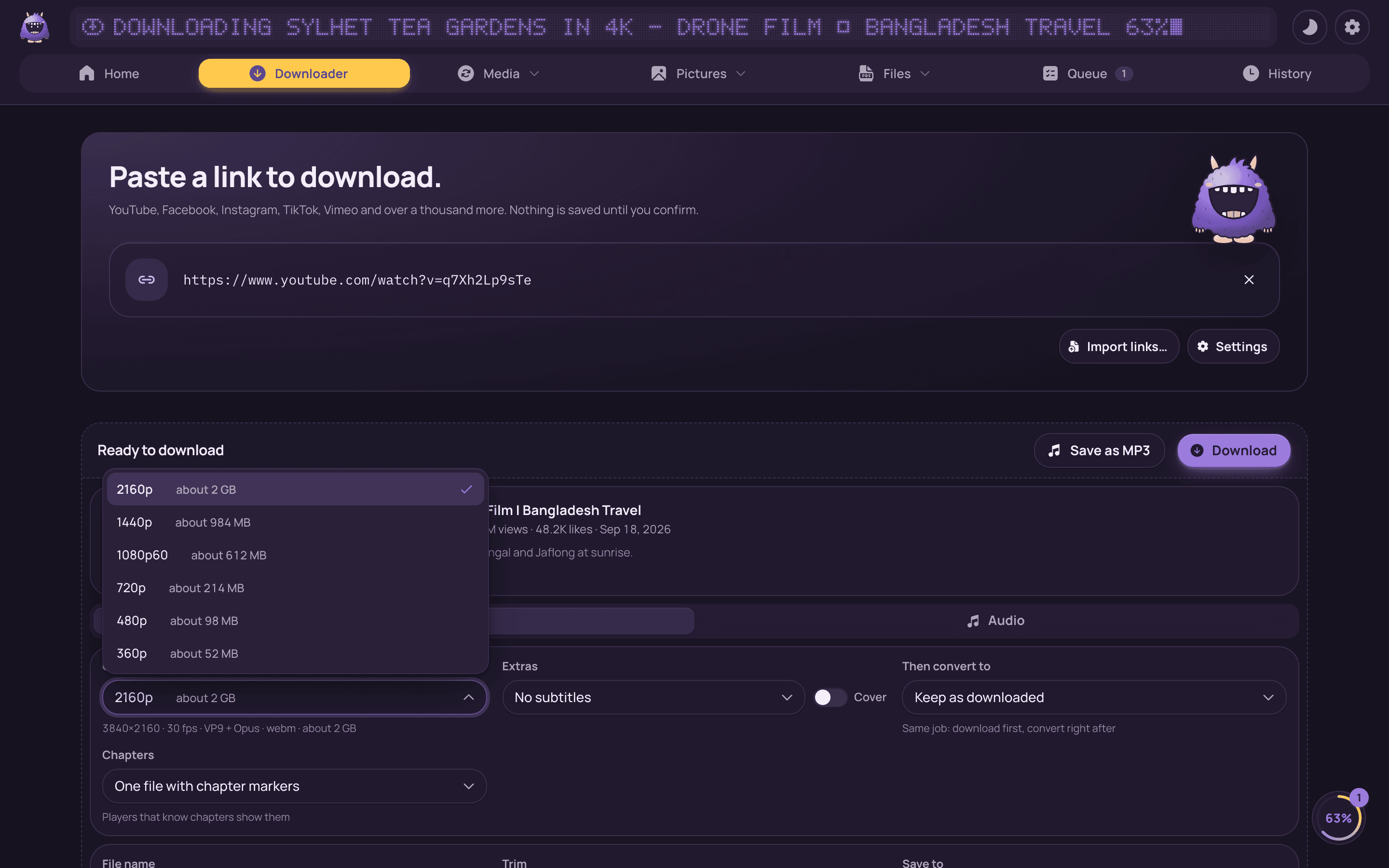
- Open GrabNConvert and paste it on the Download page (or just copy it: the mascot offers the download by itself).
- The app checks the link and shows the file's name, kind and size. Pick the folder and press Download.
The file is saved as it is, at its original quality: a video is not re-encoded, a zip is not opened. If the connection drops, the download continues where it stopped instead of starting over, which matters for a 10 GB file on a shaky connection. A file with the same name in the folder is never overwritten; the new one gets "(2)".
Dropbox Transfer, WeTransfer and MEGA: the download window
These three only hand out files from their own page. Dropbox Transfer may ask you to sign in, WeTransfer signs every download inside its page, and MEGA decrypts the file in the page itself, so there is no plain address a downloader can fetch. GrabNConvert opens the page in a window of its own instead of sending you to the browser:
- Paste the link and press Download. A window opens with the transfer's page.
- Sign in if the page asks, then press Download on the page, for one file or for all of them.
- The files land in your folder under their own names and show in the queue with their progress, like any other download. The window closes by itself a few seconds after the last file is in.
Closing the window early keeps the files that finished and removes the half-done ones. The page gets no access to the app or your computer; it is only a window onto the website.
Why not just use the browser?
- It continues: a broken download picks up where it stopped (for the share links above).
- One queue: drive files, YouTube videos and conversions wait in the same list; pause, cancel or retry any of them.
- Straight to the next step: a downloaded video can go to Compress, Convert or Subtitles in one click, and a folder of photos to Folder convert.
- Private: the file goes from the drive to your disk. GrabNConvert has no server in between and sees nothing.
Also in 1.0.10
- Mac: Separate voice and music, Remove background and saving PDF pages as pictures work again (they failed with "could not be loaded"), and the Voice recorder asks for the microphone properly.
- A YouTube video that only plays in some countries now says so, names the countries where it plays, and asks you to turn on a VPN app and try again. See Help for which free VPNs let you pick the US.
- Send to phone on Android is much faster, keeps going when the phone's screen locks, and continues a broken transfer.
The full list of changes is in the changelog. Questions? See Help or email us.